Go Profiling Demystified: A Practical Q&A Guide
Profiling is an essential practice for understanding and optimizing the performance of your Go applications. It helps you identify where your program spends CPU time, how memory is allocated, and where concurrency issues arise. The Go standard library provides a built-in profiling tool called pprof, which samples the call stack and generates detailed reports. However, many developers find it confusing or only use it as a last resort. This Q&A guide breaks down the key concepts of Go profiling, explains the different profile types, and shows you how to effectively use pprof—including a quick look at how GoLand can simplify the process.
1. What is profiling in Go and how does pprof help?
Profiling in Go means monitoring your program’s runtime behavior to pinpoint performance bottlenecks. The pprof tool, included in the Go development kit, samples the call stack at regular intervals or during specific runtime events. It then creates profile files that you can analyze via the command line or a web interface. This lets you see exactly which functions consume the most CPU, allocate the most memory, or cause goroutines to block. Without profiling, you’d be guessing about optimizations. pprof gives you hard data, making it easier to focus your efforts where they matter most. For example, the official Go diagnostic documentation recommends profiling to identify expensive or frequently called code paths. While pprof is powerful, it presents raw low-level data, so you need to know how to interpret it—which we’ll cover in later questions.
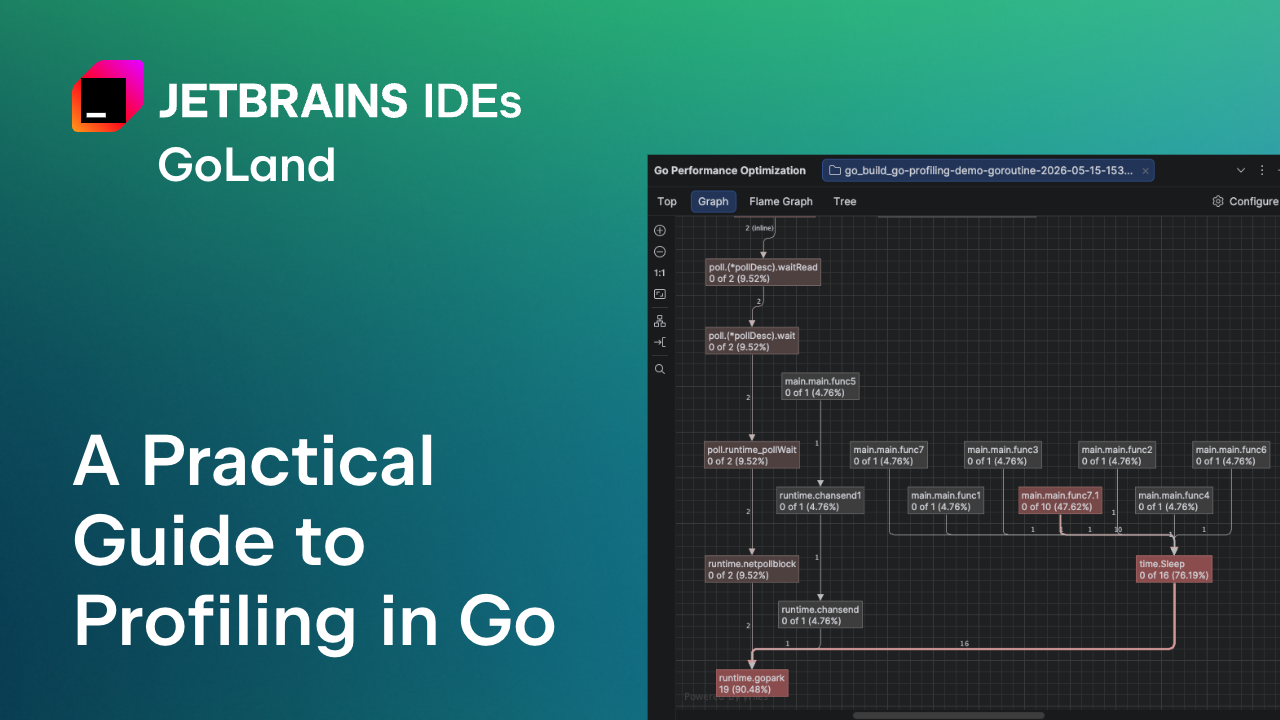
2. What are the different types of profiles available in Go?
Go’s pprof supports several profile types, each targeting a specific aspect of performance:
- CPU profile: Samples the call stack at a fixed rate (default 100 Hz) to show where CPU time is spent.
- Heap profile: Tracks currently allocated objects in memory, helping you find memory leaks or excessive usage.
- Allocs profile: Similar to heap but focuses on total allocations over time, useful for reducing garbage collection pressure.
- Mutex profile: Captures which goroutines are blocked on mutexes, revealing lock contention.
- Block profile: Tracks generic blocking events (channels, sync primitives) to show where goroutines are stalled.
- Goroutine profile: Lists all goroutines in the program, helping you detect leaks or unexpected concurrency patterns.
Choosing the right profile depends on the problem you’re investigating. For instance, a slow response might be CPU-bound, but if memory usage grows unbounded, start with heap profiles. In the next questions, we’ll see how to run and interpret each type.
3. How can I run a CPU profile in Go?
To run a CPU profile, you typically add profiling code to your application or use the test framework. In a standalone program, import runtime/pprof and call pprof.StartCPUProfile(f) at the beginning, then pprof.StopCPUProfile() when done. Alternatively, for benchmarks and tests, use the -cpuprofile flag: go test -cpuprofile=cpu.out. The resulting cpu.out file can be analyzed with go tool pprof cpu.out, which opens an interactive shell where you can type commands like top (to see top CPU consumers) or web (to generate a visual graph). The web interface (go tool pprof -http=:8080 cpu.out) provides a more intuitive view with flame graphs and call graphs. Remember that CPU profiles sample at a fixed rate, so the data is statistical; longer runs reduce noise. For more details, see the profile types section.
4. How do I analyze memory profiles (heap and allocs)?
Memory profiles come in two flavors: heap and allocs. The heap profile shows what memory is currently allocated (live objects), making it ideal for detecting leaks. The allocs profile, on the other hand, tracks total allocations since program start, which helps you see where your program creates the most garbage. To generate a heap profile, call pprof.WriteHeapProfile(f) at a point of interest. For allocs, use go test -memprofile=mem.out with the -memprofilerate flag to control sampling frequency. When analyzing, look for functions that appear with high in-use space (heap) or high total allocations (allocs). The pprof commands top, list, and svg are your friends. Visual graphs can reveal unexpected allocation hot spots. For instance, if a small function allocates many temporary objects, inlining or using a sync.Pool might help. Pair this analysis with CPU profiling to see if allocations are also CPU-intensive. For best results, run memory profiles under realistic workloads.

5. What's the difference between mutex and block profiles?
Both mutex and block profiles diagnose concurrency issues, but they focus on different things. The mutex profile records when a goroutine is waiting to acquire a mutex while another goroutine holds it. It specifically targets sync.Mutex and sync.RWMutex contention. Enable it with runtime.SetMutexProfileFraction(1) and then write the profile via pprof.Lookup("mutex").WriteTo(f, 0). The block profile, on the other hand, catches any blocking event—waiting on channels, sync.WaitGroup, time.Sleep, or I/O. It is enabled using runtime.SetBlockProfileRate(1). While the mutex profile is a subset of blocking, the block profile gives a broader view. In practice, use the mutex profile when you suspect lock contention is the culprit (e.g., many goroutines fighting over a shared resource), and use the block profile when you see low CPU usage but high latency. Interpreting these profiles is similar: look for functions where a large amount of time is waiting.
6. What are some best practices for effective profiling in Go?
To get the most out of profiling, start by profiling under realistic conditions—never in a test environment that doesn’t match production load. Use the -benchtime flag in benchmarks to run long enough for stable samples. Always compare profiles from before and after changes to measure impact. For CPU profiles, prefer a sampling rate of 100 Hz (default) unless you need higher precision. For memory profiles, set -memprofilerate to 1 (sample every allocation) only when debugging; otherwise, use the default to reduce overhead. Keep in mind that profiling itself adds overhead, so avoid running multiple profiles simultaneously on the same process. If you’re using GoLand, its integrated profiler lets you start CPU and memory profiles with a single button, automatically opens the web viewer, and highlights hot functions in the editor. This lowers the barrier for beginners. Finally, don’t over-optimize: let profiling data guide you to the real bottlenecks, and always verify improvements with another profile.
Related Articles
- Adapting Your JetBrains Plugin for Remote Development: A Step-by-Step Guide
- Simulating High-Voltage Phenomena: From Corona Testing to Submarine Cable Fields
- Local-First Web Development: A Practical Guide from the Trenches
- Your AI Email Assistant May Be Spying On You: What You Need To Know
- Unlocking Interchangeable Blocks: The Block Protocol Explained
- Stardew Valley Creator Weighs Adultery and Divorce Mechanics: 'Morally Against It'
- The Verge Trial Breakdown: 10 Key Moments from Musk v. Altman Closing Arguments
- 10 Critical Insights About AI Clones: From Ethical Digital Twins to Disturbing New Trends