6 Reasons Why Cron in WSL Beats Windows Task Scheduler for Automations
If you're using Windows Subsystem for Linux (WSL), you already know you can run Linux apps, commands, and GUI tools without dual-booting or a separate VM. But there's a hidden gem: the Linux cron utility. While Windows Task Scheduler is the native automation tool, cron inside WSL often delivers a more straightforward, predictable experience. Here are six reasons why cron in WSL outperforms Task Scheduler—and how you can start automating your Windows filesystem today.
1. It Works Exactly as You Expect
The biggest reason cron beats Task Scheduler is that it simply does what you tell it. With cron, you write a crontab entry like 0 3 * * * /home/user/backup.sh, and it runs at 3 AM every day—no surprises. Task Scheduler, on the other hand, has a complex GUI with triggers, conditions, and settings that often lead to failed or missed tasks. I've found that cron's text-based simplicity eliminates guesswork. When will the job run? The crontab line tells you instantly. No digging through menus or wondering why a trigger didn't fire. That reliability alone makes cron superior for routine automations.
2. Native Access to Your Windows Filesystem
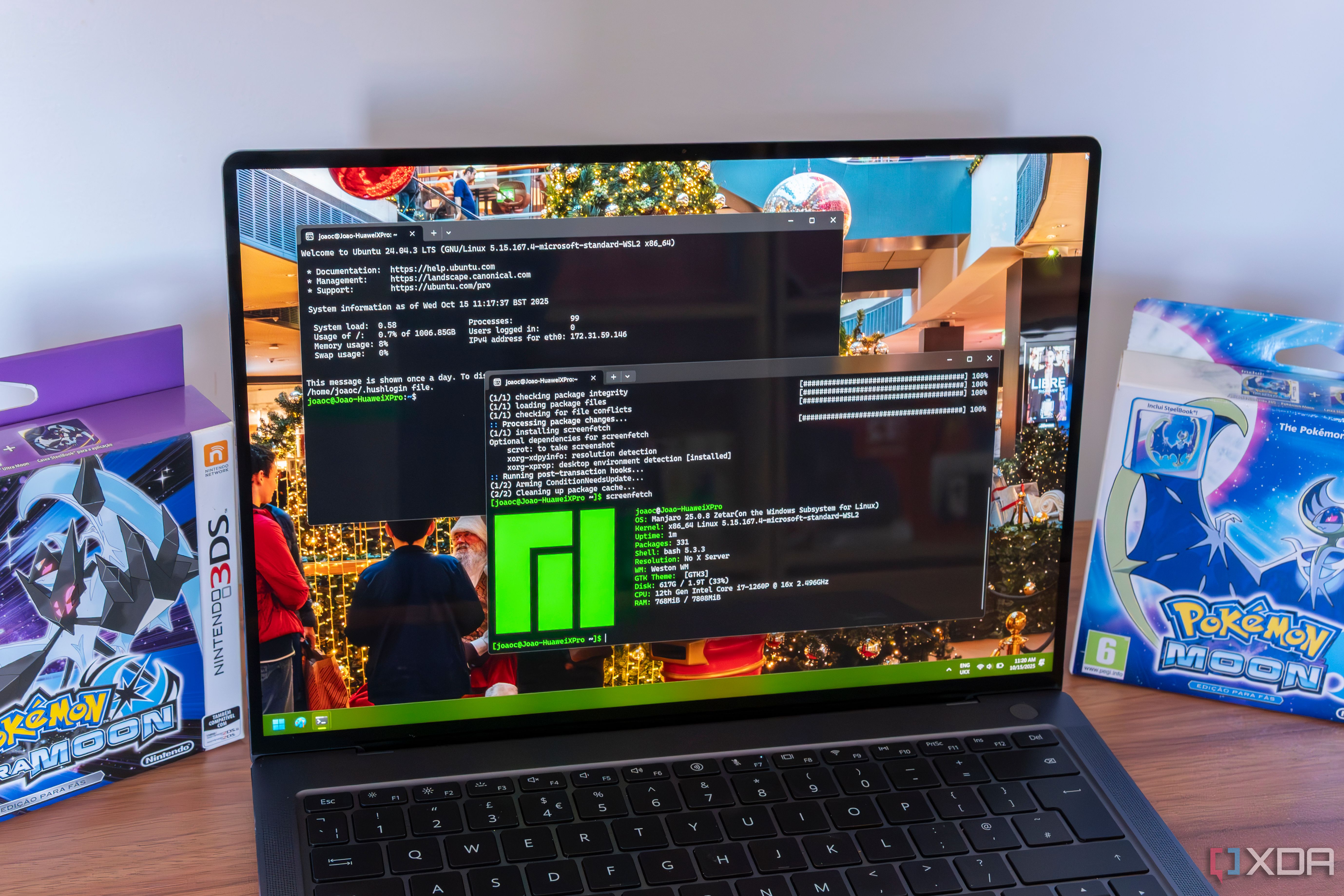
WSL mounts your Windows drives under /mnt/c/, /mnt/d/, etc. This means cron jobs can read, write, and execute scripts directly on Windows files without any special configuration. For example, you can schedule a nightly backup of your Windows Documents folder to an external drive—all from a cron job inside WSL. No need to set up network shares or third-party tools. The path is transparent, and cron handles it just like any Linux filesystem. This seamless integration is something Task Scheduler cannot match without additional steps.
3. Simpler Configuration and Debugging
Cron's configuration is a single text file per user (crontab -e), which you can edit in your favorite editor. Want to test a job? Run the command manually in the terminal first. If it works, just drop it into crontab. Task Scheduler requires you to navigate multiple windows, set triggers, actions, conditions, and then test by right-clicking and running—which sometimes doesn't replicate the scheduled behavior. With cron, you can set MAILTO to receive output, log to a file, or simply check syslog. Debugging is faster and more transparent.
4. Lightweight and Always Available
Task Scheduler relies on the Windows Task Scheduler service, which can be paused or disrupted by system updates, battery saving modes, or user logoffs. Cron in WSL runs as a lightweight daemon that starts automatically with the WSL instance. As long as WSL is running—which it does in the background—cron continues ticking. You don't need to be logged in or keep a GUI open. This makes it ideal for maintenance tasks like cleaning temp files, syncing cloud folders, or running scripts that don't need user interaction. It just works, even when you're away.
5. Easily Version-Controlled and Portable
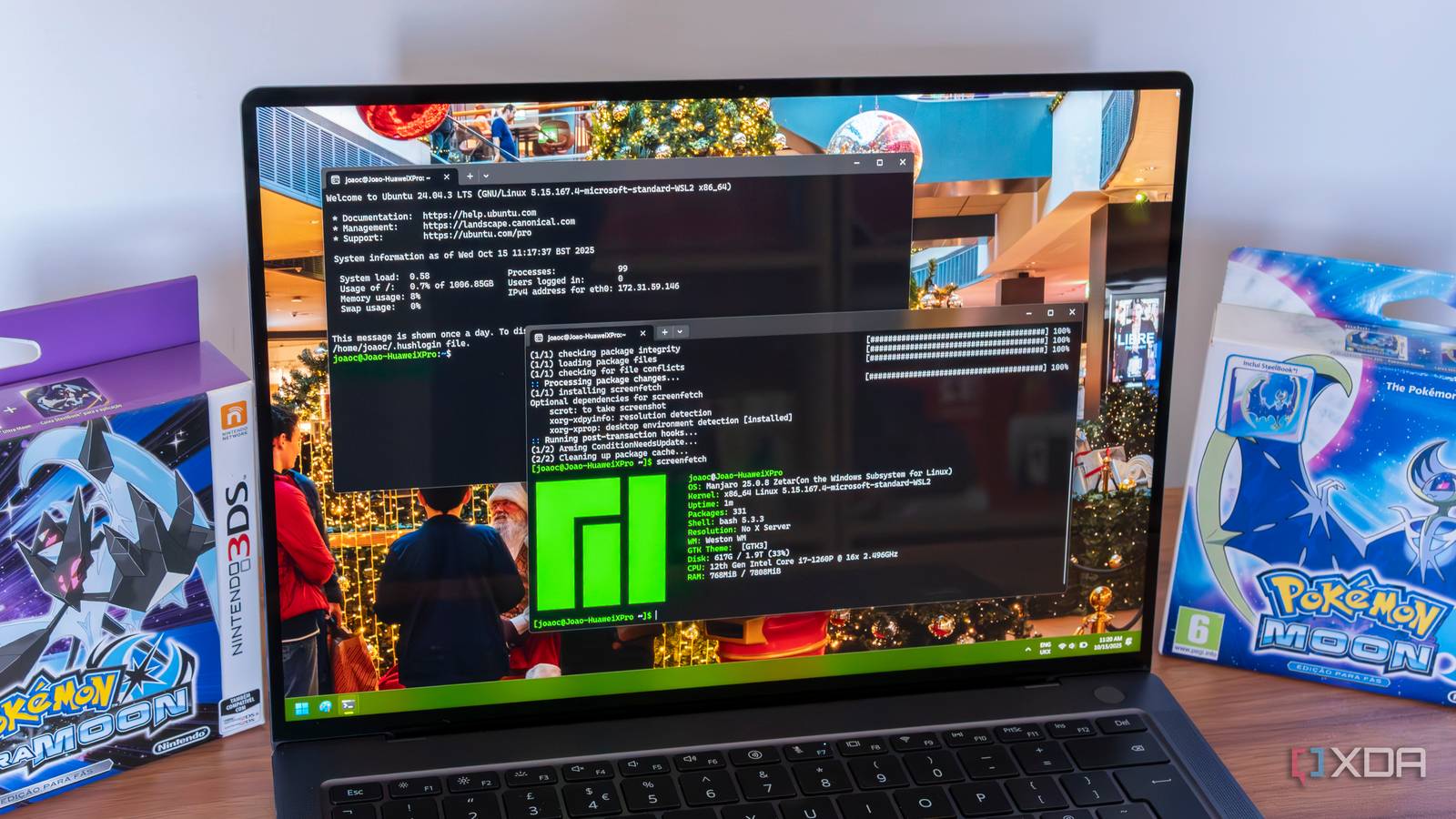
Your cron jobs are stored as plain text, meaning you can commit your crontab to a Git repository. This enables version control, rollback, and sharing across machines. If you move to another Linux environment—or even another WSL installation on a different PC—you can restore your automations in seconds. Task Scheduler stores its tasks in XML within the system registry or a hidden folder, making backup and migration cumbersome. With cron, a single crontab -l command gives you the entire schedule, ready to be backed up or transferred.
6. Leverage the Full Linux Ecosystem
Task Scheduler is designed to run Windows executables and PowerShell scripts. Cron inside WSL can run any Linux command, script, or program—bash, Python, Perl, Ruby, or compiled binaries. This opens the door to powerful tools like rsync, grep, awk, and custom bash scripts that are often more expressive than their Windows equivalents. You can combine cron with find to clean old files, or use curl to fetch data from an API and save it directly to your Windows desktop. The possibilities are vast, and the syntax is consistent across all your Linux devices.
Ready to start? Simply enable WSL (if you haven't already), launch your Linux distro, and edit your crontab with crontab -e. Write your first job pointing to a script on your Windows /mnt/c/Users/YourName/ directory. You'll quickly see why cron inside WSL is a game-changer for automating tasks on Windows—it just works the way you think.
Related Articles
- Your Guide to Aerion: Setting Up a Secure, Lightweight Desktop Email Client
- Firefox 150: Key New Features Explained
- The Musk vs. OpenAI Trial: Key Questions and Answers from the Roundtable Discussion
- How to Access and Watch FOSDEM 2026 Conference Recordings: A Complete Guide
- Introducing the Block Protocol: A Universal Standard for Web Blocks
- Building Ethical AI Personas: A Comprehensive Guide to Digital Twins and Clones
- 10 Reasons Why Perceptron Mk1 Is Revolutionizing Video AI at a Fraction of the Cost
- How GlowReadTTS Brings Private, High-Quality Text-to-Speech to Your Browser