Ensuring Your Messaging Backups Are Truly Private: A Step-by-Step Guide to Meta’s Enhanced Encryption
Introduction
Meta has taken significant steps to strengthen the security of end-to-end encrypted backups for WhatsApp and Messenger. At the heart of this effort is the HSM-based Backup Key Vault, a system that stores your recovery code in tamper-resistant hardware security modules (HSMs) spread across multiple data centers. This guide explains how the system works and provides practical steps you can take to verify that your backups remain secure and inaccessible to Meta or any third party.
What You Need
- A WhatsApp or Messenger account with end-to-end encrypted backups enabled
- Access to the internet and your messaging app
- A passkey or recovery code (optional, for verification)
- (Optional) The full whitepaper “Security of End-To-End Encrypted Backups” for audit steps
Step-by-Step Instructions
Step 1: Enable End-to-End Encrypted Backups
Open WhatsApp or Messenger and navigate to your account settings. Look for the backup or chat backup section and toggle on end-to-end encrypted backups. If you already have backups enabled, ensure they are protected with a recovery code or passkey. This step ensures your message history is encrypted before it leaves your device.
Step 2: Set Up a Recovery Code or Passkey
During the backup setup, you’ll be prompted to create a recovery code. This code is the only way to restore your backups if you lose your device. In late 2023, Meta also introduced support for passkeys, making it easier to protect backups without remembering a complex code. Your recovery code (or passkey) is then stored inside the HSM-based Backup Key Vault, where it remains inaccessible to Meta, cloud storage providers, or any third party.
Step 3: Understand How the HSM-Based Backup Key Vault Protects Your Key
Once you create a recovery code, it is immediately sent to a geographically distributed fleet of HSMs. These modules use majority-consensus replication—meaning a quorum of HSMs must agree before any operation is performed. The vault is deployed across multiple data centers to ensure resilience. Because the code is stored in tamper-resistant hardware, even Meta cannot access it. This foundation is what makes the entire encryption system trustworthy.
Step 4: Learn How Over-the-Air Fleet Key Distribution Works (Messenger)
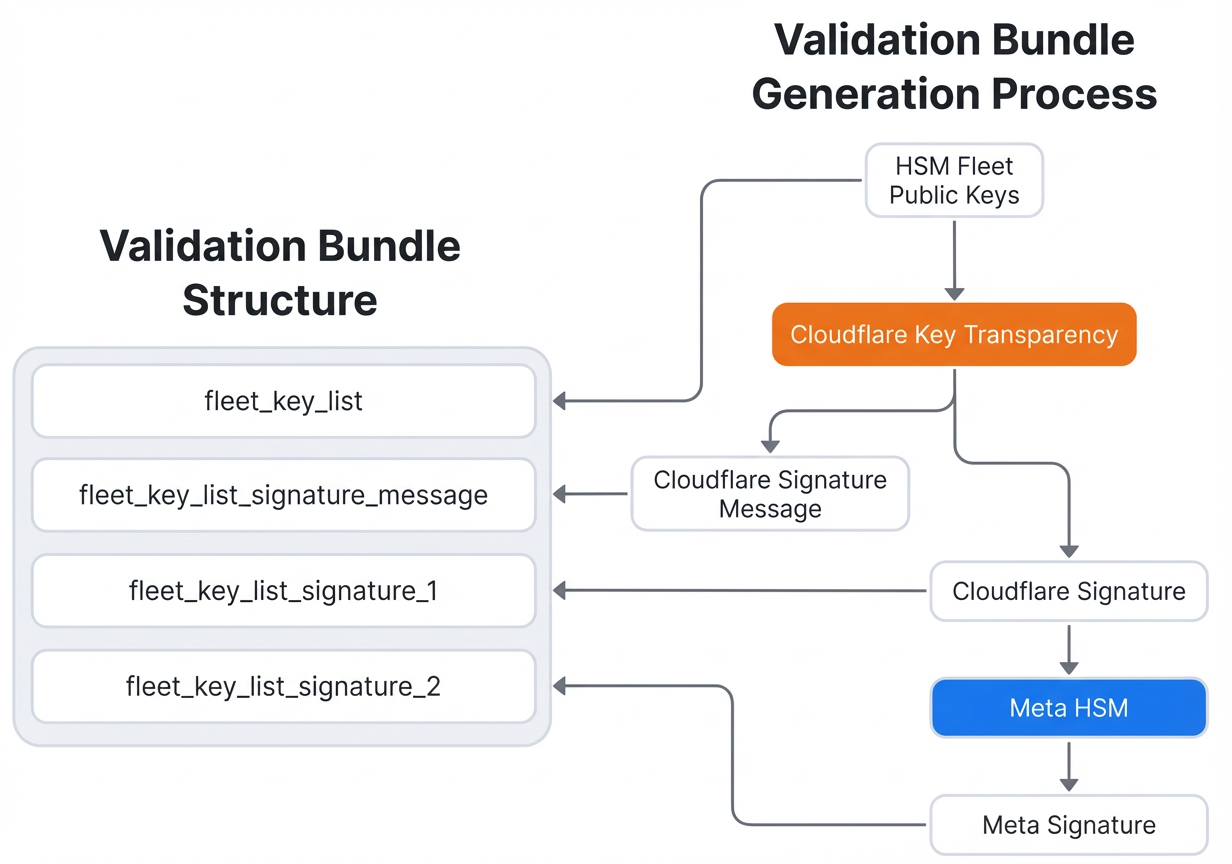
For Messenger, Meta built a mechanism to distribute HSM fleet public keys over the air. This avoids needing an app update each time a new fleet is deployed. When your Messenger client connects to an HSM fleet, it receives a validation bundle that includes the fleet’s public keys. This bundle is signed by Cloudflare and then counter-signed by Meta, providing independent cryptographic proof of authenticity. Cloudflare also keeps an audit log of every bundle issued. You can read the full validation protocol in the whitepaper.
Step 5: Verify the Authenticity of Fleet Keys (For Advanced Users)
To confirm that your client is connecting to a legitimate HSM fleet, you can follow the audit steps described in the whitepaper’s “Security of End-To-End Encrypted Backups”. The process involves:
- Capturing the validation bundle from your client’s network traffic (using a tool like Wireshark).
- Checking the Cloudflare signature on the bundle to ensure it hasn’t been tampered with.
- Verifying Meta’s counter-signature.
- Comparing the fleet public key against the list of known keys published in the blog post mentioned in Step 6.
This verification ensures that no one—including Meta—can impersonate an HSM fleet and gain access to your recovery code.
Step 6: Monitor New HSM Fleet Deployments via Published Evidence
Meta has committed to publishing evidence of each new HSM fleet deployment on this blog page. New fleets are deployed infrequently (typically every few years). When a new fleet goes live, Meta will post cryptographic proofs of its secure deployment. Any user can verify these proofs using the same audit steps from the whitepaper. By checking these publications, you can remain confident that the infrastructure protecting your backups is correctly configured and that Meta cannot access your data.
Tips
- Keep your recovery code safe: Write it down and store it in a secure location (e.g., a password manager). Without it, you cannot restore your backup if you lose your device.
- Use a passkey if available: Passkeys are easier to manage than long recovery codes and offer the same level of security.
- Regularly check for new fleet announcements: Bookmark the Meta engineering blog and revisit it every few months to see if new HSM fleet evidence has been published.
- Audit if you’re skeptical: The whitepaper provides full instructions for verifying the system. Even if you’re not a security expert, you can share the audit steps with a trusted technical friend.
- Remember: The HSM-based Backup Key Vault is designed so that Meta, cloud storage providers, and third parties cannot access your backup even if they wanted to. The security rests on the tamper-resistant hardware and the cryptographic proofs described above.
By following these steps, you can ensure your messaging backups are protected by one of the strongest encryption systems available today. For complete technical details, be sure to read the full whitepaper: “Security of End-To-End Encrypted Backups”.
Related Articles
- Frontier AI Sparks Race in Cyber Defense: SentinelOne Reveals How Machine-Speed Autonomy Stops Zero-Day Threats
- Canvas Cyberattack: 8 Critical Facts Every Educator and Student Must Know
- Defending Against Modern Social Engineering Campaigns: A Deep Dive into UNC6692's Tactics
- AI-Powered Cyberattacks for Pennies: How Organizations Can Fight Back with Smarter Defenses
- How to Analyze and Respond to the Latest Cyber Threats (Week of April 27)
- Critical Exim BDAT Flaw Allows Remote Code Execution in GnuTLS Builds
- How to Use Anthropic Mythos to Accelerate macOS Kernel Exploit Development (Case Study)
- 2025 Zero-Day Exploits: A Year of Shifting Targets and Escalating Threats