How to Stop Android Apps From Secretly Draining Your Battery
As your Android phone ages, its battery life naturally diminishes, but hidden app activity can accelerate that decline. Many apps run background processes that consume power without you noticing. One effective solution is using a free monitoring tool like GSam Battery Monitor to uncover these silent drains and take control. Below are answers to common questions about identifying and managing battery-hungry apps.
Why does Android battery life get worse over time?
Lithium-ion batteries degrade with each charge cycle, reducing capacity after a year or two. However, the biggest factor is often app behavior. As you install more apps, many run background services—like syncing data, checking location, or updating widgets—even when you aren't actively using them. This drains battery faster, especially on older batteries with less capacity. GSam Battery Monitor helps you see exactly which apps are using power in the background, so you can limit or uninstall them.
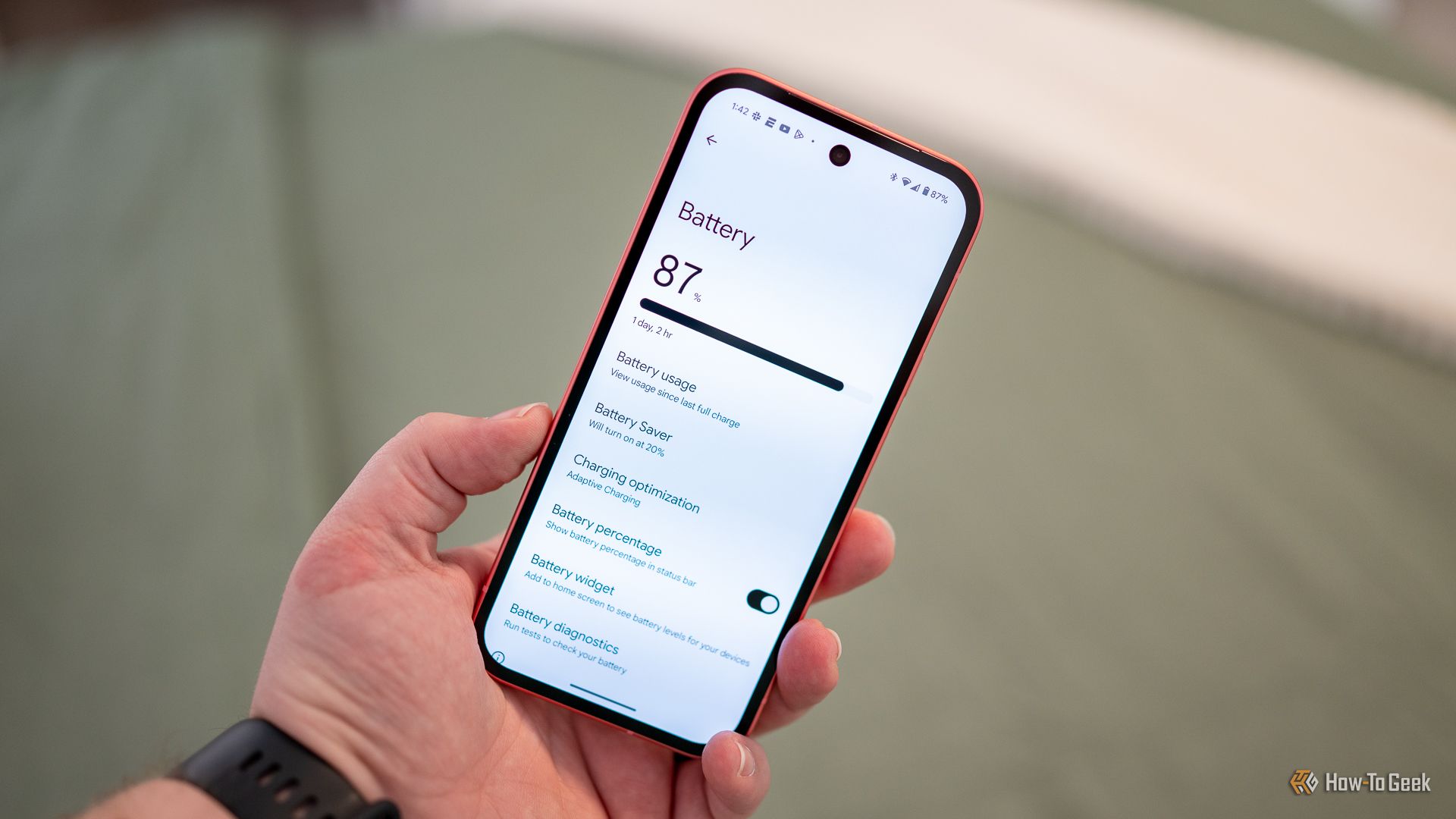
What is GSam Battery Monitor and how does it work?
GSam Battery Monitor is a free Android app that provides detailed breakdowns of battery usage. Unlike basic system battery stats, it shows historical data, wake locks (which prevent the phone from sleeping), and per-app CPU usage. You can view usage by time period—like “last hour” or “since last charge”—and drill down into each app’s background activity. It also tracks hardware components (screen, WiFi, cellular) and gives an estimated remaining battery time based on current consumption. The app itself uses minimal power, making it ideal for monitoring without draining your battery further.
How can I identify silent app drains with GSam?
Open GSam and tap the “App Usage” tab. You’ll see a list of apps sorted by battery consumption, with separate columns for “Foreground” and “Background” usage. Look for apps that use significant background power—often those you rarely open, like shopping or utility apps. GSam also shows “Keep Awake” percentage, which reveals how long an app prevented your phone from deep sleeping. Any app with high keep-awake time is a likely silent drain. You can then decide to restrict its background activity, force stop it, or uninstall it.
Can GSam help extend battery life on older phones?
Absolutely. On older phones with reduced battery capacity, every milliwatt counts. GSam lets you see exactly where power goes: a poorly optimized app might use 30% of battery while only being open 5% of the time. By identifying such apps and either disabling their background activity, removing their permissions, or uninstalling them, you can often add 1-2 hours of screen-on time to an aging battery. The tool also provides historical graphs so you can track improvements after taking action.

What are the most common battery-draining app behaviors GSam reveals?
- Persistent location requests – Apps that constantly check your location even when closed.
- Frequent sync – Social media and news apps that refresh feeds every few minutes.
- Wake locks – Apps that prevent the phone from sleeping, such as some games or messaging apps.
- Misconfigured widgets – Widgets that update too often.
GSam shows you a list of “Alarms” and “Wake Locks” per app, making these behaviors easy to spot.
Is GSam Battery Monitor really free, and are there privacy concerns?
Yes, GSam is completely free with no ads (though a paid Pro version offers extra features). Since it only reads system battery stats, it does not collect personal data or send information to third parties. However, it does request permission to access usage statistics—a standard Android permission that many monitoring apps use. You can download it from the Google Play Store with confidence. If you’re privacy-conscious, note that GSam is open-source and has been reviewed by the Android security community.
How often should I check GSam to keep battery drain under control?
For best results, run GSam in the background for a few days after first installing it. Then review the “App Usage” and “History” tabs weekly. You’ll soon notice patterns: maybe a particular game drains 20% battery per hour, or a messaging app keeps waking the phone. Once you identify problem apps, take action—restrict background data, disable auto-sync, or replace the app with a lighter alternative. After that, a monthly check is enough to keep your battery healthy.
Related Articles
- React Native 0.85: Key Updates and How They Affect Your Development Workflow
- Australia's EV Market Hits 27% Share in April 2026: BEVs Hold Steady, PHEVs Surge
- How Defense Contracts Are Fueling Next-Gen EV Battery Development
- Rocsys M1: Hands-Free Robotaxi Charging Explained
- React Native 0.85: Performance Upgrades and Developer Experience Enhancements
- How to Decide if the Tesla Model Y L is the Right Electric SUV for You
- Rivian Scales Back Georgia EV Plant After DOE Loan Reduction
- 10 Crucial Considerations for Australia's Data Centre Boom and the BYO Energy Debate