Switch to an Open-Source Android Keyboard: A Privacy-First Guide
Overview
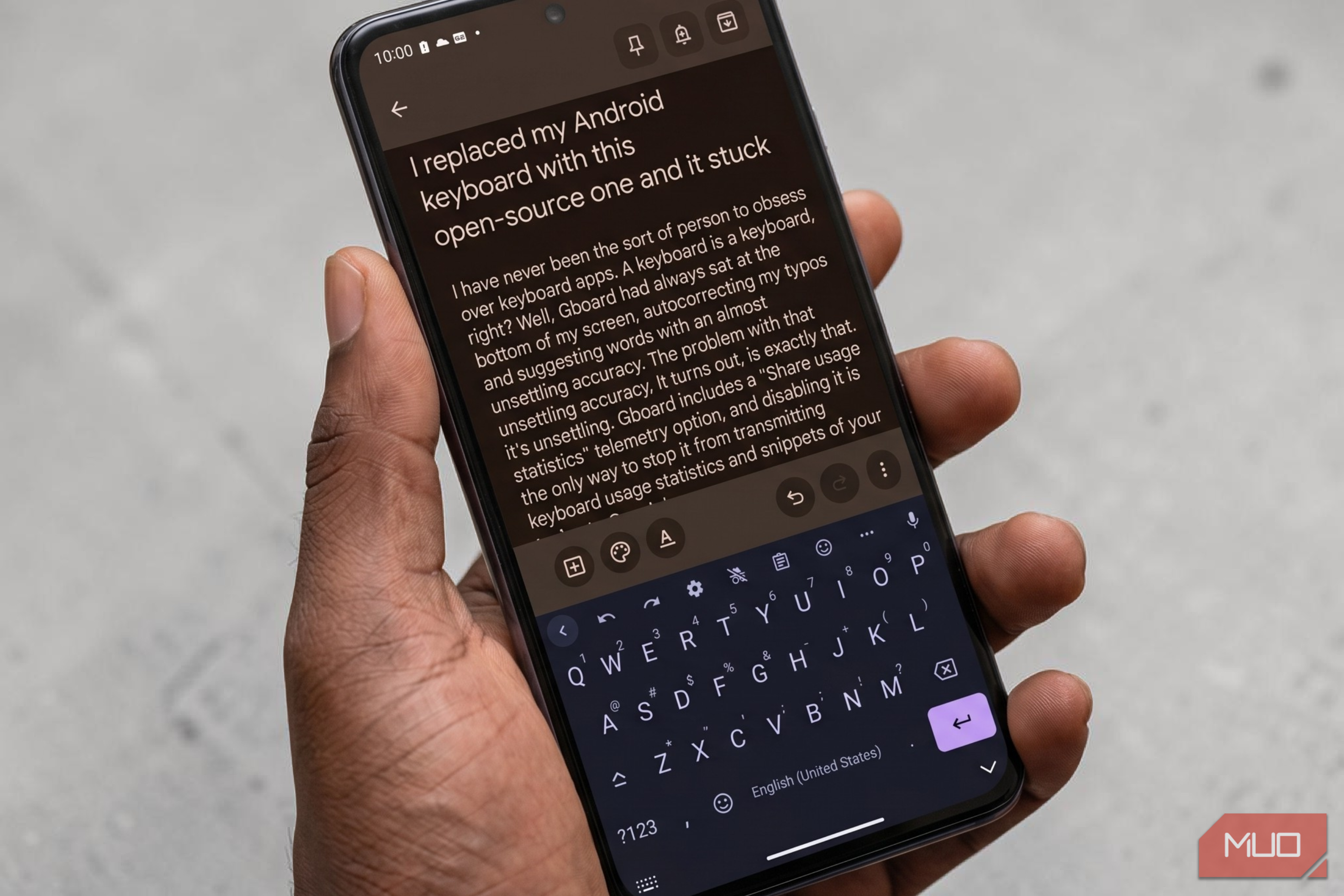
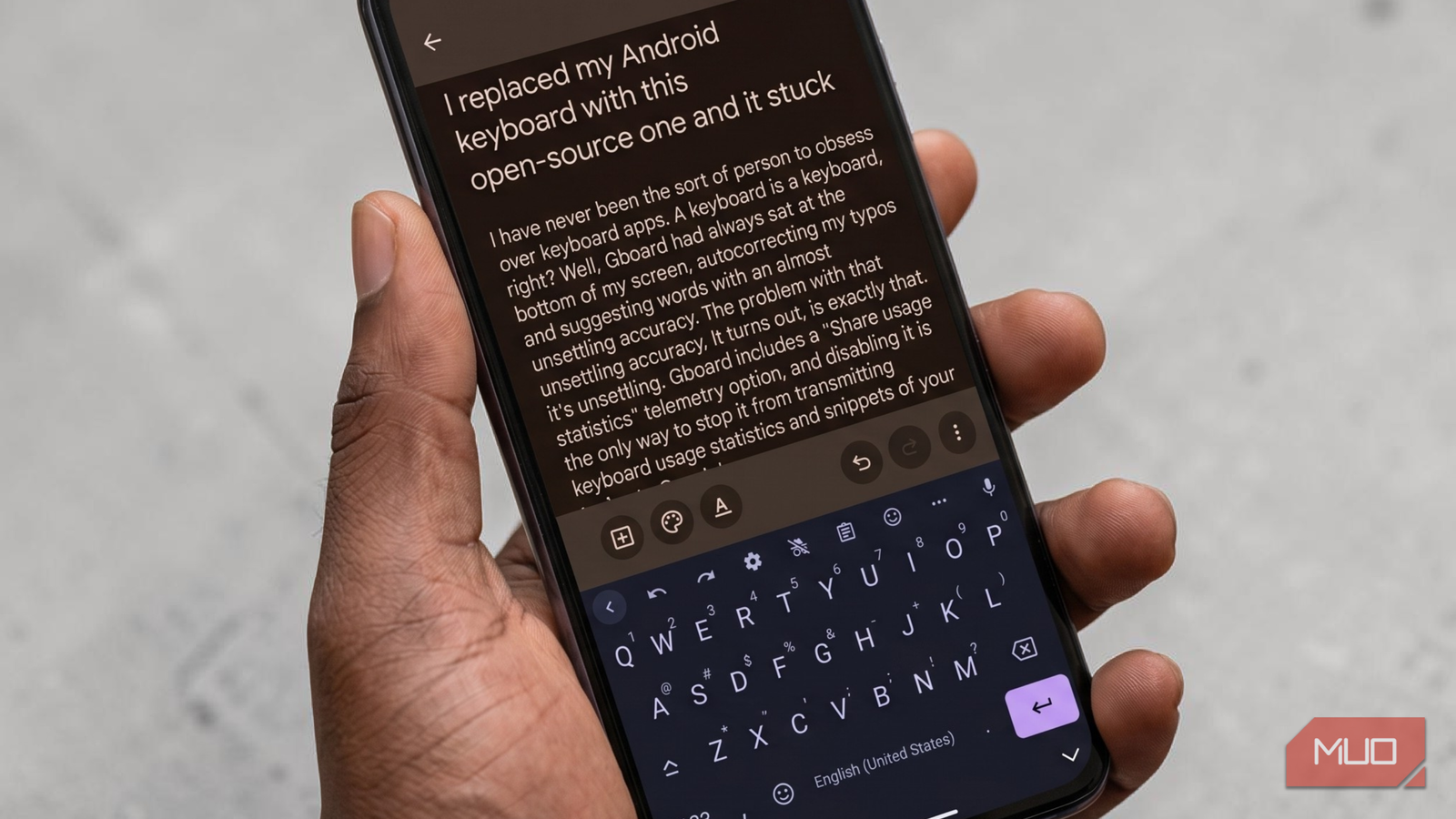
If you've ever felt uneasy about the uncanny accuracy of your Android keyboard, you're not alone. Google's Gboard is undeniably powerful, auto-correcting with near-telepathic precision. But that precision comes at a cost: it constantly sends snippets of your typed text and usage statistics to Google's servers. The only way to stop this telemetry is to disable the "Share usage statistics" option, but even then, the core infrastructure remains proprietary. Many users are turning to open-source alternatives that respect privacy while still delivering a smooth typing experience. This guide walks you through replacing your Android keyboard with an open-source one, step by step, so you can regain control over your keystrokes.
Prerequisites
Before you begin, ensure you have the following:
- An Android device running Android 7.0 (Nougat) or newer.
- At least 20 MB of free storage space for the keyboard app.
- Internet access (only for downloading the app; after that, you can go fully offline).
- Basic familiarity with navigating Android Settings.
Step-by-Step Instructions
1. Finding and Selecting an Open-Source Keyboard
The first step is choosing the right keyboard for your needs. Popular open-source options include:
- FlorisBoard: Feature-rich, with gesture typing, themes, and clipboard history. Actively maintained.
- OpenBoard: Lightweight and simple, closely mimicking AOSP's default keyboard. Perfect for minimalists.
- AnySoftKeyboard: Highly customizable with multiple layouts, emoji support, and text expansion.
All of these are available on F-Droid or GitHub, and some also on Google Play (though the Play versions may include proprietary dependencies). For maximum privacy, download from F-Droid.
2. Downloading the Keyboard App
- Open the F-Droid app on your device (or install it from f-droid.org if you haven't already).
- Search for your chosen keyboard (e.g., "FlorisBoard").
- Tap Install and confirm. The app will download and install automatically.
- If using GitHub, download the latest APK from the releases page and enable "Install from unknown sources" temporarily.
3. Enabling the Keyboard in System Settings
After installation, the keyboard must be enabled in Android's input method settings.
- Go to Settings > System > Languages & input.
- Under On-screen keyboard, tap Manage on-screen keyboards.
- Toggle the switch next to your new keyboard (e.g., "FlorisBoard") to the ON position.
- A warning may appear about the keyboard collecting all input (this is standard for any third-party keyboard). Read it and tap OK to proceed.
4. Switching to the New Keyboard
- Open any text input field (e.g., Messages, Notes).
- Tap the keyboard icon (often a small keyboard or gear) in the bottom-right corner of the navigation bar.
- Select your new keyboard from the list. If the icon isn't visible, long-press the spacebar or swipe down on the keyboard to access the switcher.
- You'll now see the open-source keyboard in action. If you prefer it permanently, you can remove other keyboards later.
5. Configuring Privacy and Features
Open-source keyboards typically offer granular privacy controls:
- Disable telemetry: In FlorisBoard, go to Settings > Privacy and turn off all data collection toggles.
- Offline dictionaries: Ensure autocorrect works without an internet connection by downloading dictionary files locally.
- Logging: Turn off any logging of keystrokes or usage statistics. The default should be off, but verify.
6. Customizing Your Experience
- Theme: Most open-source keyboards support dark/light themes and custom colors. Set one that reduces eye strain.
- Layout: Choose between QWERTY, QWERTZ, Dvorak, or even programmable layouts.
- Gesture typing: Enable swipe-to-type if your keyboard supports it (e.g., FlorisBoard has this built-in).
- Text expansion: Add shortcuts for frequently typed phrases (e.g., "omw" expands to "On my way!").
Common Mistakes and How to Avoid Them
Mistake 1: Not Removing Gboard After Switching
Gboard remains active unless disabled. If you don't remove it, Android may occasionally switch back to it. To remove Gboard entirely, go to Settings > Apps > Gboard > Disable. This stops it from running in the background and sending data.
Mistake 2: Downloading from Unofficial Sources
Stick to trusted repositories like F-Droid or the official GitHub releases. Any third-party APK site may bundle malware or trackers.
Mistake 3: Ignoring Permissions
When you enable a new keyboard, Android warns that it can collect all typed input. This is true for any keyboard. Open-source keyboards use this permission only for legitimate autocorrect and gesture input, but you should verify by reading the source code or checking community audits.
Mistake 4: Forgetting to Update
Open-source projects evolve rapidly. Check for updates monthly via F-Droid or GitHub to get bug fixes and privacy improvements.
Mistake 5: Overlooking Multilingual Support
If you type in multiple languages, ensure your chosen keyboard supports them. For example, FlorisBoard allows downloading multiple language packs, while OpenBoard only supports one at a time. Plan accordingly to avoid frustration.
Summary
By replacing Gboard with an open-source alternative like FlorisBoard, you eliminate the invasive telemetry that sends your typing data to Google. This guide covered finding, installing, enabling, and configuring a privacy-first keyboard, along with common pitfalls to avoid. The adjustment period is short, and the peace of mind is valuable. Give your keystrokes the privacy they deserve.
Related Articles
- 10 Key Insights into Microsoft's Windows 11 'Low Latency Profile' Controversy
- How to Unlock the True Potential of Dolby Atmos Without Buying New Gear
- 10 Key Transformations in Facebook Groups Search You Should Know
- 7 Lessons in Designing for Amiability: What Vienna’s Intellectual Circle Teaches Us About Online Communities
- Revolutionizing Facebook Groups Search: A Hybrid Approach to Unlocking Community Knowledge
- Fostering Amiable Communities: Insights from the Vienna Circle
- Connect Your Social Accounts: A Step-by-Step Guide to Federated Bridging
- 7 Amiability Lessons from the Vienna Circle for a More Welcoming Web